Run your first scan
Choose retailers and a date range, start the scan, and read the results.
Run your first scan
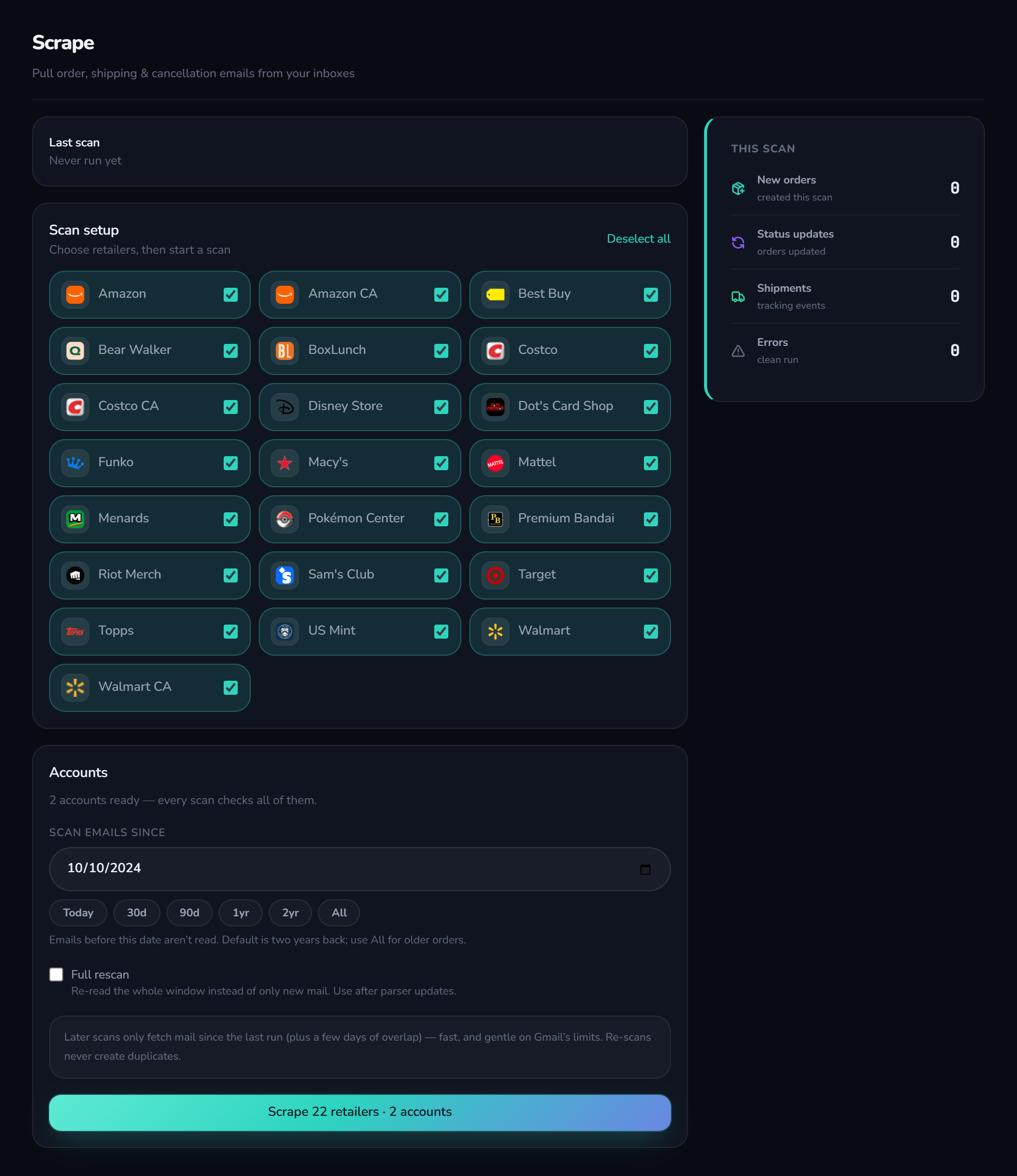
A scan reads the mailboxes you connected and turns matching emails into orders. Open it from Inbound → Inbox Scan in the sidebar (the page itself is titled Scrape).
Set it up
- 1Check the accounts
The Accounts panel lists your connected inboxes. At least one must be connected.
- 2Choose retailers
All supported retailers are ticked by default. Untick any you do not buy from to make the scan faster, or use the select-all toggle.
- 3Pick how far back to look
Use the presets — Today, 30d, 90d, 1yr, 2yr, All — or set an exact start date. The first time, 2 years is a good start; later scans can be short.
- 4Press the button at the bottom
It reads Scrape N retailers · N accounts. A progress bar runs and every account shows its own status. You can leave the page; the scan keeps going.
 Tick your storesHow far back to lookPress to scan
Read the results
| Counter | Meaning |
|---|---|
| New orders | Orders that did not exist before and were created from emails |
| Status updates | Existing orders that moved forward, for example to Shipped or Delivered, or were canceled |
| Shipments | Tracking numbers found in shipping emails |
| Errors | Emails that matched a retailer but could not be read. See History |
Orders are matched by order number, so scanning the same period again updates what changed instead of creating duplicates.
Supported retailers
Amazon, Amazon CA, Best Buy, Bear Walker, BoxLunch, Costco, Costco CA, Disney Store, Dot's Card Shop, Funko, Macy's, Mattel, Menards, Pokémon Center, Premium Bandai, Riot Merch, Sam's Club, Target, Topps, US Mint, Walmart and Walmart CA. Anything else can be added by hand on the dashboard.
How a scan works
Inbox Scan is the engine of orderpilot. The step-by-step is in Run your first scan; this page explains the details.
What a scan reads
- Order confirmation, shipping and cancellation emails from the retailers you ticked.
- Inside them it picks out the retailer, items, quantity, total, order number, delivery address and tracking number.
- By default it also reads the Junk / Spam folder, because retailer emails often land there. You can switch that off in Settings.
What it never does
- It does not mark mail as read, move it, send mail or delete anything.
- It does not log into any retailer or place orders.
- It only runs when you start it.
How statuses are decided
Each email moves an order forward: a confirmation creates it as Processing, a shipping email makes it Shipped and stores the tracking number, delivery emails make it Delivered, and a cancellation email moves it to Canceled. If a status email is missing you can mark an order delivered yourself.
Tips for big inboxes
- Do the first scan with a long range (1–2 years) and every later one short.
- Untick retailers you do not buy from.
- Use groups on Connected inboxes to keep many mailboxes organised.
History: the scan log
Inbound → History records each scan and sale scan: new orders or sales, status updates, shipments and errors.
- Open a run to see exactly what changed.
- If the page says Nothing to report — every matched email parsed cleanly, nothing needs your attention.
- Errors list emails that matched a retailer but could not be read. Mention them in the Discord #support channel with the retailer name and it can usually be fixed in the next update.